This blog post is a translation of a Japanese article posted on March 27th, 2025.
Hello! This is Kakutani from the Sreake application team.
Recently, the rise of Machine Learning, Deep Learning and Generative AI made GPUs more important than ever. Large-scale models like Stable Diffusion and ChatGPT require massive computational resources, and using NVIDIA’s CUDA allows you to fully unlock the power of GPUs!
When developing GPU-enabled applications, using Docker containers makes setting up and managing development environments significantly easier. In this article, we will talk about the nvidia/cuda Docker image, and how it allows us to use CUDA in Docker containers.
What is nvidia/cuda?
nvidia/cuda is a Docker image officially provided by NVIDIA, designed to easily set up a CUDA environment without having to install anything directly on the host machine.
About CUDA
What exactly is CUDA, by the way?
CUDA (short for Compute Unified Device Architecture) is a parallel computing platform and programming model developed by NVIDIA. It lets us use GPU resources (GPGPU) for general-purpose processing, all in a C/C++ environment.
CUDA works by offloading calculations to the GPU, which makes it particularly great at parallel processing tasks (image processing, machine learning and scientific computing). Its speed makes it very attractive, which is probably why it is very well-supported by major machine learning frameworks such as PyTorch and TensorFlow.
Some CUDA Use Cases
- Generative AI: Inference and training of large-scale models like Stable Diffusion, GPT, BERT, and Llama.
- Machine Learning & Deep Learning: High-speed execution of frameworks like TensorFlow, PyTorch, and JAX on GPUs.
- HPC (High-Performance Computing): Computational processing for scientific simulations and calculations.
Technologies used in nvidia/cuda
nvidia/cuda combines various technologies alongside CUDA to efficiently utilize GPU computational resources.
- cuDNN (CUDA Deep Neural Network library)
- A library optimized for deep learning.
- Optimizes calculations for convolutional layers, pooling layers, and activation functions to achieve high speed.
- Improves efficiency particularly for CNN (Convolutional Neural Network) training and inference.
- Frequently used in Generative AI for training deep learning models like image generation and speech synthesis.
- TensorRT
- An NVIDIA library for optimizing inference processing.
- Performs model quantization and optimization to improve inference speed.
- Ideal for Generative AI applications requiring low latency and high throughput.
- Used during inference for Large Language Models (LLMs) like GPT.
- cuBLAS (CUDA Basic Linear Algebra Subprograms)
- A library for accelerating linear algebra operations.
- Optimizes basic linear algebra operations such as matrix calculations, vector operations, and matrix decomposition.
- Used in Generative AI for model parameter updates and calculations during inference.
Using GPUs inside Docker
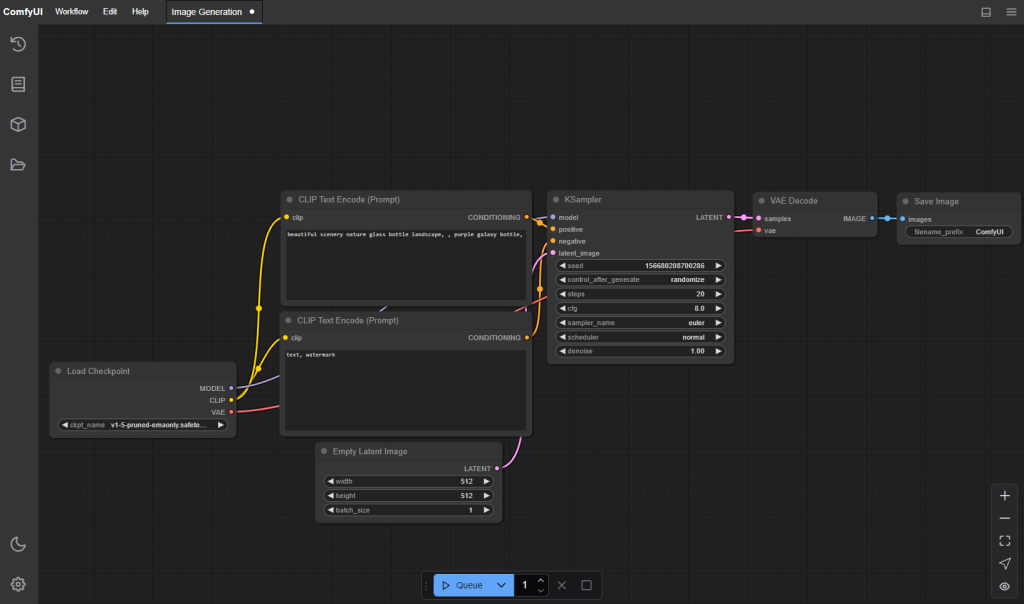
In this section, we will configure ComfyUI to run inside a container.
Our Environment
We are using EC2 with a g5.2xlarge instance type.
# OS version
$ lsb_release -a
No LSB modules are available.
Distributor ID: Ubuntu
Description:    Ubuntu 22.04.5 LTS
Release:        22.04
Codename:       jammy

# CPU info
$ sudo lshw -class processor
       description: CPU
       product: AMD EPYC 7R32
       vendor: Advanced Micro Devices [AMD]
       physical id: 4
       bus info: cpu@0
       version: 23.49.0
       slot: CPU 0
       size: 2800MHz
       capacity: 3300MHz
       width: 64 bits
       clock: 100MHz
       capabilities: lm fpu fpu_exception wp vme de pse tsc msr pae mce cx8 apic sep mtrr pge mca cmov pat pse36 clflush mmx fxsr sse sse2 ht syscall nx mmxext fxsr_opt pdpe1gb rdtscp x86-64 constant_tsc rep_good nopl nonstop_tsc cpuid extd_apicid aperfmperf tsc_known_freq pni pclmulqdq ssse3 fma cx16 sse4_1 sse4_2 movbe popcnt aes xsave avx f16c rdrand hypervisor lahf_lm cmp_legacy cr8_legacy abm sse4a misalignsse 3dnowprefetch topoext ssbd ibrs ibpb stibp vmmcall fsgsbase bmi1 avx2 smep bmi2 rdseed adx smap clflushopt clwb sha_ni xsaveopt xsavec xgetbv1 clzero xsaveerptr rdpru wbnoinvd arat npt nrip_save rdpid
       configuration: cores=4 enabledcores=4 microcode=137367679 threads=8

# GPU info
$ lspci | grep -i nvidia
00:1e.0 3D controller: NVIDIA Corporation GA102GL [A10G] (rev a1)

$ lspci -s 00:1e.0 -v
00:1e.0 3D controller: NVIDIA Corporation GA102GL [A10G] (rev a1)
        Subsystem: NVIDIA Corporation GA102GL [A10G]
        Physical Slot: 30
        Flags: bus master, fast devsel, latency 0, IRQ 10
        Memory at c0000000 (32-bit, non-prefetchable) [size=16M]
        Memory at 1000000000 (64-bit, prefetchable) [size=32G]
        Memory at 840000000 (64-bit, prefetchable) [size=32M]
        Capabilities: <access denied>
        Kernel driver in use: nvidia
        Kernel modules: nvidiafb, nvidia_drm, nvidia

# GPU usage stats
$ nvidia-smi                                                                   (base)
Tue Mar  4 18:04:47 2025
+---------------------------------------------------------------------------------------+
| NVIDIA-SMI 535.183.01             Driver Version: 535.183.01   CUDA Version: 12.2     |
|-----------------------------------------+----------------------+----------------------+
| GPU  Name                 Persistence-M | Bus-Id        Disp.A | Volatile Uncorr. ECC |
| Fan  Temp   Perf          Pwr:Usage/Cap |         Memory-Usage | GPU-Util  Compute M. |
|                                         |                      |               MIG M. |
|=========================================+======================+======================|
|   0  NVIDIA A10G                    Off | 00000000:00:1E.0 Off |                    0 |
|  0%   17C    P8                 9W / 300W |      0MiB / 23028MiB |      0%      Default |
|                                         |                      |                  N/A |
+-----------------------------------------+----------------------+----------------------+

+---------------------------------------------------------------------------------------+
| Processes:                                                                            |
|  GPU   GI   CI        PID   Type   Process name                            GPU Memory |
|        ID   ID                                                             Usage      |
|=======================================================================================|
|  No running processes found                                                           |
+---------------------------------------------------------------------------------------+
Installing NVIDIA Container Toolkit
The NVIDIA Container Toolkit is a set of tools enabling the use of NVIDIA GPUs within Docker containers. We’ll install it using Ubuntu’s package manager.
sudo apt update
sudo apt install -y nvidia-container-toolkit
sudo systemctl restart docker
Our Dockerfile
Here’s the Dockerfile we’ll use to run ComfyUI. We set the host to 0.0.0.0 to connect to ComfyUI from outside.
FROM nvidia/cuda:12.1.0-devel-ubuntu22.04

RUN apt-get update && apt-get install -y \
    python3 \
    python3-pip \
    git \
    && rm -rf /var/lib/apt/lists/*

WORKDIR /app
RUN git clone https://github.com/comfyanonymous/ComfyUI.git ComfyUI && \
    cd ComfyUI && \
    pip3 install -r requirements.txt

CMD ["python3", "/app/ComfyUI/main.py", "--listen", "0.0.0.0", "--port", "8188"]
Configuring Docker Compose
Here’s the Compose specification we’ll use to set everything together.
services:
  cuda-container-comfyui:
    build:
      context: .
      dockerfile: Dockerfile
    ports:
      - "8188:8188"
    deploy:
      resources:
        # GPUデバイスの予約設定
        reservations:
          devices:
             # NVIDIAドライバを使用するデバイスの設定
            - driver: nvidia
              device_ids: ["0"]
              capabilities: [all]
We use the capabilities field to allow access to all GPU features (all), but you can be more granular with this setting:
gpu: For basic GPU resourcescompute: For computing and math capabilitiesdisplay: For display (GUI) featuresvideo: For video processing, encoding, decoding and streaminggraphics: For graphics processing and 3D rendering
Starting the Container
We can now start the container!
$ docker compose up --buildUsing the nvidia-smi command, we can see our python process is using GPU resources:
$ nvidia-smi

+---------------------------------------------------------------------------------------+
| NVIDIA-SMI 535.183.01             Driver Version: 535.183.01   CUDA Version: 12.2     |
|-----------------------------------------+----------------------+----------------------+
| GPU  Name                 Persistence-M | Bus-Id        Disp.A | Volatile Uncorr. ECC |
| Fan  Temp   Perf          Pwr:Usage/Cap |         Memory-Usage | GPU-Util  Compute M. |
|                                         |                      |               MIG M. |
|=========================================+======================+======================|
|   0  NVIDIA A10G                    Off | 00000000:00:1E.0 Off |                    0 |
|  0%   25C    P0             59W / 300W |    256MiB / 23028MiB |      0%      Default |
|                                         |                      |                  N/A |
+-----------------------------------------+----------------------+----------------------+

+---------------------------------------------------------------------------------------+
| Processes:                                                                            |
|  GPU   GI   CI        PID   Type   Process name                            GPU coMemory |
|        ID   ID                                                             Usage      |
|=======================================================================================|
|    0   N/A  N/A      34674       C   python3                                   248MiB |
+---------------------------------------------------------------------------------------+
And you can now access ComfyUI!
Managing GPU Resources
The current environment has only one GPU installed. If you have multiple GPUs, you can specify which GPU to allocate with the device_ids field.
services:
  cuda-container-comfyui:
    build:
      context: .
      dockerfile: Dockerfile
    ports:
      - "8188:8188"
    deploy:
      resources:
        reservations:
          devices:
            - driver: nvidia
              device_ids: ["0", "1"]  # Use the first and second GPUs in your environment
              capabilities: [all]
Measuring GPU Usage
While AWS CloudWatch offers GPU monitoring, you can also execute the nvidia-smi dmon command to monitor GPU usage in real-time.
$ nvidia-smi dmon

# gpu    pwr  gtemp  mtemp     sm    mem    enc    dec    jpg    ofa   mclk   pclk
# Idx      W      C      C      %      %      %      %      %      %    MHz    MHz
    0     58     29      -      0      0      0      0      0      0   6250   1710
    0     58     29      -      0      0      0      0      0      0   6250   1710
    0     58     29      -      0      0      0      0      0      0   6250   1710
    ...
Here’s an overview of available metrics:
| Item | Description |
| gpu (Idx) | The GPU used (starting from 0) |
| pwr (W) | The current power consumption (Watt). Increases under high load. |
| gtemp (C) | The GPU Temperature (℃). Thermal throttling occurs if it becomes too hot. |
| mtemp (C) | The Memory Temperature (℃). Shows up as - if cannot be retrieved. |
| sm (%) | The Streaming Multiprocessors (SM) usage rate. |
| mem (%) | The GPU memory usage rate. Indicates VRAM usage. |
| enc (%) | The Hardware Encoder (NVENC) usage rate. Increases during video encoding. |
| dec (%) | The Hardware Decoder (NVDEC) usage rate. Increases during video decoding. |
| jpg (%) | The JPEG Engine usage rate. Related to image processing. |
| ofa (%) | The Optical Flow Accelerator usage rate. Used in machine learning and video processing. |
| mclk (MHz) | The Memory Clock (MHz). |
| pclk (MHz) | The GPU Core Clock (MHz). |
Summary
Using the nvidia/cuda image made using CUDA in Docker a piece of cake!
I hope this article will be helpful when trying to build GPU-aware applications. CUDA is a must when working in Generative AI and Deep Learning, and it’s really handy when your development environment is built from the ground up to support GPU usecases.
Happy coding!